 Twinread
Side by side translation extension
Updated
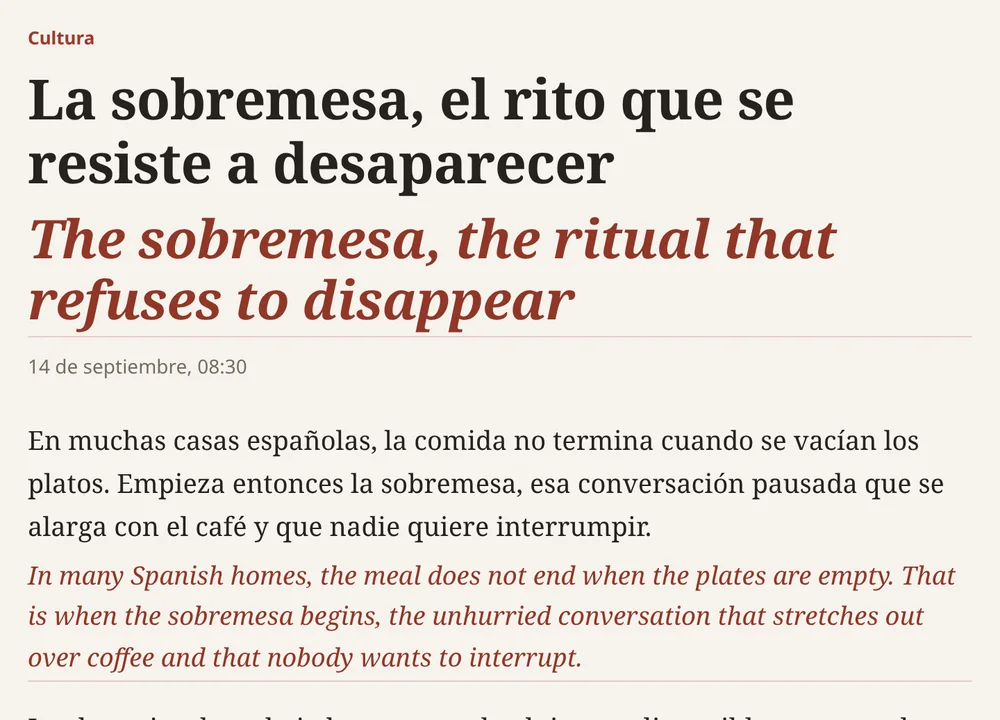
Side by side translation shows the original text and its translation together, so you can check one against the other. Twinread does this in Chrome and Edge by putting the translation directly under each paragraph. It uses Chrome's built-in translator, runs on your computer, and needs no account.
Google Chrome 138 or later, or a Chromium browser with the built-in Translator API, on desktop. No account, no API key.
Two ways to show both languages
Some tools show two columns, the original on the left and the translation on the right. Others put each translation under its paragraph. Twinread does the second. Each pair stays together, so your eyes move down the page once and there is no second pane to scroll in step. It does not offer a two-column layout.
Set it up in five steps
- Install Twinread from the Chrome Web Store or Microsoft Edge Add-ons. It needs Google Chrome 138 or later, or Microsoft Edge 148 or later, on desktop.
- A welcome page opens. Choose your two languages, then press "Download the language model now". Chrome downloads a small model once for each language pair. After that, translation works without a connection.
- Open a page in the language you want to read. It must be an https page.
- Click the Twinread button in the toolbar, then "Translate this page". Alt+A does the same. Visible paragraphs come first, and text that loads as you scroll is picked up.
- Read. The bar at the bottom right switches between Bilingual, Translation only and Show original, without translating again.
Chrome lets a page use its language model only after a click, once for each website. The toolbar button and the shortcuts count as that click. If a Start translating button appears, press it once.
Choose how the translation looks
There are four looks for the translation: Subtle, Underline, Highlight, and Dim the original. Pick one in the popup and it applies at once. Subtle keeps the translation quieter than the original. Highlight makes it stand out.
Translate less than the whole page
Select text on any page and a small card shows the translation, with a copy button. Alt+Shift+S translates the selection from the keyboard. Hold Alt over a paragraph to translate only that paragraph.
What it leaves alone
Code, forms, editable areas, hidden text and one-word menu labels are not translated. Text already in your language is skipped. Links in the original stay clickable, and Show original brings the page back untouched with one click.
Limits
- Google Chrome 138 or later, on desktop, or a Chromium-based browser that ships the built-in Translator API (verified in Chromium 153). On first use Chromium fetches its engine, which takes about 20 seconds.
- Pages served over https only. Chrome does not turn its translator on for plain http pages.
- One translation engine: Chrome's. You cannot switch to another service or an AI model.
- On web pages, it leaves Chrome's own pages, the Web Store and the built-in PDF viewer alone. PDFs open in Twinread's own reader instead.
Everything above is free, with no limit on pages or length. Always-translate works on as many sites as you like, free. Free also covers whole PDFs and bilingual video subtitles for the first 10 minutes of each video. Pro translates whole videos and keeps unlimited phrases, and a 7-day trial starts when you press Start 7-day trial. See the pricing. If you need more engines or scanned PDFs, read the comparison with Immersive Translate.
Both languages on one page
Install Twinread, pick a language pair, and press Alt+A on any https page.
Google Chrome 138 or later, or a Chromium browser with the built-in Translator API, on desktop. No account, no API key.